Installation Guide
Notaclock is a secure, lightweight, and privacy-focused application. Follow these simple steps to verify the app on your system.
Safe Installation on macOS
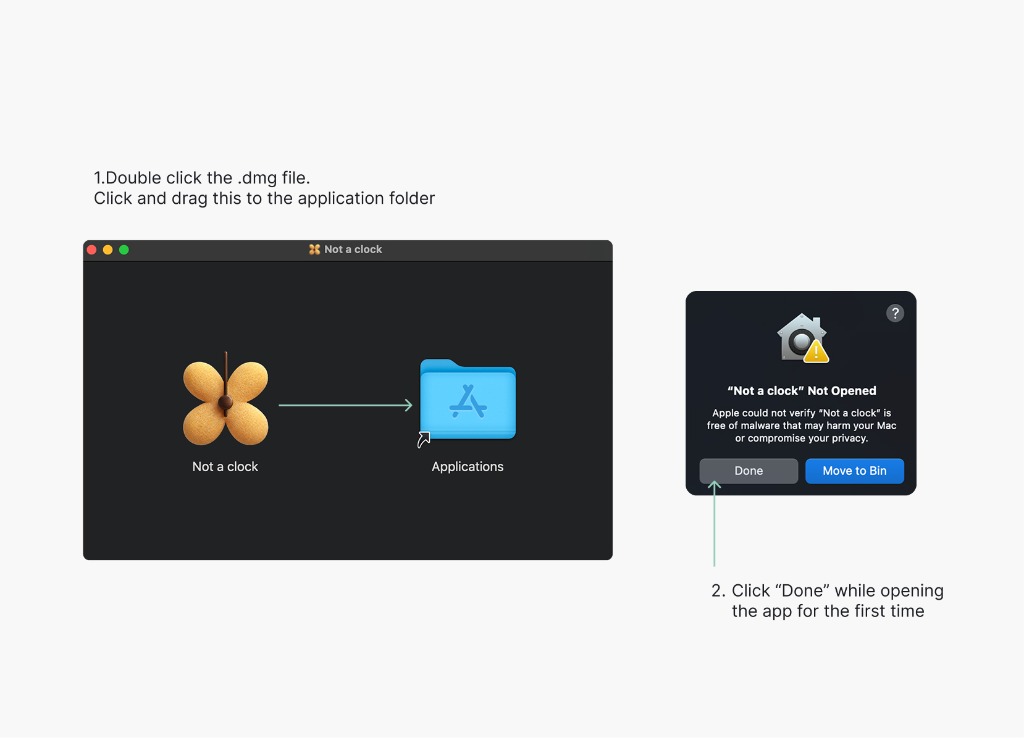
Because Notaclock is distributed directly to users for a lightweight experience, macOS will show a standard security prompt. This is a normal part of the macOS security flow for independent software.
- Open the downloaded .dmg file and drag Notaclock to your Applications folder.
- Launch the app. If you see an "Unidentified Developer" warning, click Done.
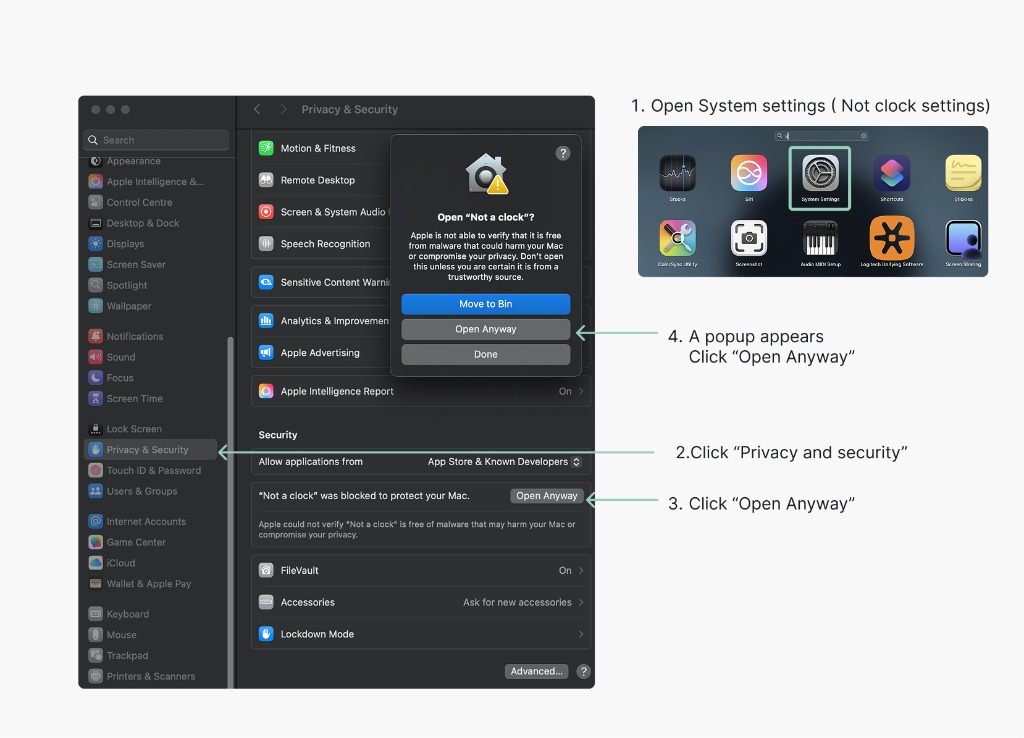
- Open your System Settings and navigate to Privacy & Security.
- Scroll down to the Security section.
- Click Open Anyway next to the Notaclock block message.
- Confirm by clicking Open in the final dialog.
Known UI Bug & Workaround
If the Custom Photo mask is not applied correctly (e.g., photo appears rectangular instead of following the clock shape):
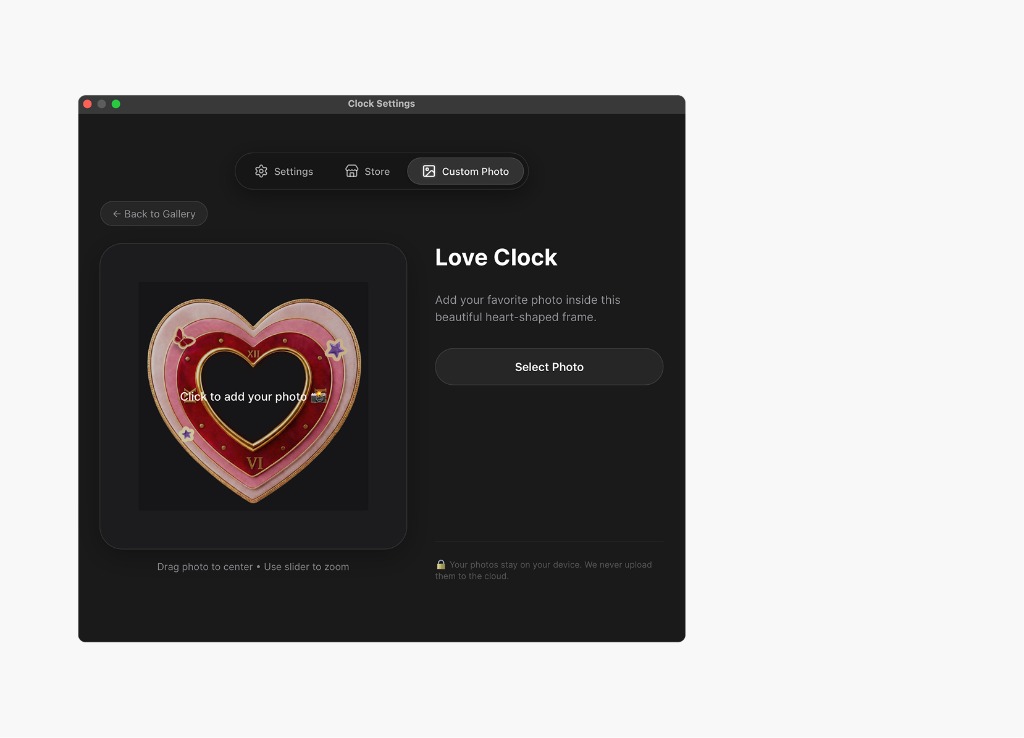
- Please try updating your macOS to the latest version.
- Ensure your screen resolution and scaling are set to default.
- Restart the app after applying changes.
If the issue persists, please contact support and provide your MacBook model number and macOS version.